表单处理:让页面上的输入真正变成可用的数据
报名表里出现第六个输入框时,:value + @input 已经复制了六遍。第五章让我们亲手接通了这条事件数据回路::value 把状态送进控件,@input 接住事件,再把 $event.target.value 写回状态;它很诚实地展示了数据怎么走,却不值得在每个文本字段上反复铺开。
于是先做一次顺着上一章而来的重构:原来的 <input :value="nickname" @input="nickname = $event.target.value" />,收拢成下面的 v-model。它不是忽然多出的一种“魔法绑定”,而是 Vue 为这组重复模式规定的简写。
vue
<script setup>
import { ref } from 'vue'

const nickname = ref('')
</script>

<template>
  <label for="nickname">昵称</label>
  <input id="nickname" v-model="nickname" type="text" />
  <p>你好,{{ nickname || '新朋友' }}</p>
</template>
这行重构刚写完,真正有意思的问题就来了。若把文本框的 :value + @input 原样套到“同意条款”的复选框上,读到的并不是它是否勾选;单选框要让一组控件共同决定一个值,下拉框又以选项为单位变化;年龄输入即便长得像数字,DOM 交回来的值也未必就是业务需要的数字。它们不能照抄文本框,因为每一种控件都有自己的控件协议:状态通过哪个属性表现,用户操作后发出什么事件,交回来的值又是什么形状。
v-model 收掉文本字段的重复接线后,报名表却没有因此完成:文本框、多行文本、复选框、单选框、下拉选择与数字输入,各自交回不同形状的值。把它们组合起来,还得让数据收集保持清楚,让校验错误能够被看懂,让无效提交被拦住,也让标签和错误提示能被辅助技术正确理解。只有这些环节一起接通,它才是一份真正可以交给用户填写的报名表。

把事件章的重复模式收成一份约定
先回看刚才的文本框重构。下面两种写法表达的是同一件事:
vue
<template>
  <!-- 简写 -->
  <input v-model="message" />

  <!-- 展开后 -->
  <input
    :value="message"
    @input="message = $event.target.value"
  />
</template>
:value="message" 负责把当前的 JavaScript 状态写到输入框,方向是状态到界面;@input 负责在用户输入时取出新的 DOM 值,再赋回状态,方向是界面到状态。所谓“双向”,说的是这两个方向都接通了,并不是浏览器里藏着两个变量,彼此不停地观察对方。
这个区别很重要。状态只有一份,它在 <script setup> 里由 ref 或 reactive 保存。输入框的 value 是这份状态在 DOM 上的表现。当输入事件发生,事件处理逻辑把新值交还给状态;状态改变后,Vue 再更新依赖它的界面。整个回路有明确的先后顺序,并不存在两个“真相来源”。

v-model 接通的是“向下传值”和“向上接事件”两条路,JavaScript 状态始终是数据来源。把重构前后放在一起看
我们用同一个 .vue 文件并排保留重构前后的两组输入。左边是第五章已经掌握的 DOM 值与输入事件,右边把这套重复模式交给 v-model。这样可以直接核对:省掉的是重复接线,数据回路本身没有改变。
vue
<script setup>
import { ref } from 'vue'

const manualText = ref('先看看手动同步')
const modelText = ref('再看看 v-model')

function handleManualInput(event) {
  manualText.value = event.target.value
在任意输入框里打字,对应段落会立即显示新内容。点击“用代码修改”,输入框也会变成按钮写入的文字。前一种写法把两条数据通路摊开了,后一种写法把它们压缩成了一个指令。运行结果相同,代码意图的密度不同。
v-model 也没有让原生事件消失。你仍然可以在同一个控件上监听 @focus、@blur、@keydown,或者在需要特殊输入规则时自己监听 @input。它只接管与“当前值同步”有关的那部分工作。
初始值为什么要写在 JavaScript 里
一旦控件使用 v-model,模板上的静态 value、checked 或 selected 就不再决定初始状态。下面这段代码里,页面加载后显示的是 script 中的“上海”,不是模板里试图标记的“北京”。
vue
<script setup>
import { ref } from 'vue'

const city = ref('shanghai')
</script>

<template>
  <select v-model="city">
    <option value="beijing" selected>北京</option>
    <
不要一边给 ref 设置初值,一边又给表单控件写静态选中状态。两处都像是在说“我才是初始值”,读代码的人会困惑,Vue 也只会采用绑定状态。把初始值集中放在 JavaScript 里,重置、回填和提交时都会更容易追踪。
把 v-model 理解为编译时展开的语法约定会更稳妥。遇到不同控件时,先问“它向下绑定哪个 DOM 属性,向上监听哪个事件”,很多表单问题就不再像玄学。
一张控件地图:相同的写法背后是不同协议
v-model 可以写在文本类 <input>、<textarea>、复选框、单选框和 <select> 上,但它不会粗暴地把所有控件都当成文本框。Vue 会根据元素和类型选择合适的属性与事件。

value 与 input,选择类控件更多使用 checked 或 value 配合 change。表格里最值得记住的并不是事件名字,而是状态形状。单个同意框回答“是或否”,所以适合布尔值;兴趣选择回答“选了哪些”,所以适合数组;配送方式回答“其中一个是什么”,所以适合字符串或其他单值。先把问题的形状想清楚,再选控件和初值,会比写完模板后反复修类型轻松得多。
文本输入:每次有效输入都更新字符串
文本框最接近我们刚才拆开的形式。输入、粘贴、语音输入或浏览器支持的其他编辑动作导致值改变时,input 事件都会承担同步工作。
vue
<script setup>
import { ref } from 'vue'

const keyword = ref('Vue')
</script>

<template>
  <label for="keyword">搜索关键词</label>
  <input
    id="keyword"
    v-model="keyword"
输入 表单处理 后,keyword 的值就是字符串 表单处理。如果用代码执行 keyword.value = '组件通信',输入框也会跟着变化。注意,直接在控制台给某个 DOM 元素写 element.value = '...' 并不会自动触发用户输入事件,也就不会凭空改变 Vue 状态。要改应用状态,就改 keyword.value;不要绕过状态去操纵 DOM。
密码、邮箱、搜索、电话等文本型输入也遵循类似的值同步方式。type="email" 会让浏览器提供相应的键盘和约束检查,但 v-model 拿到的依然是输入值,不会替你确认邮箱真的存在。
textarea:初始内容不写在标签中间
原生 HTML 常见的写法是把初始文本放在 <textarea> 的开始标签和结束标签之间。使用 v-model 后,内容从绑定状态读取,标签中间的插值不会成为它的值。
vue
<script setup>
import { ref } from 'vue'

const introduction = ref('我正在学习如何把表单数据管理清楚。')
</script>

<template>
  <label for="introduction">个人简介</label>
  <textarea
    id="introduction"
    v-model=
如果要限制长度,可以加 maxlength="120",并在界面上说明限制。计数提示适合辅助用户判断剩余空间,但服务端仍要再次检查长度,因为浏览器端规则可以被绕过。
单个复选框:它表达的是布尔状态
“是否同意接收通知”只有两种状态,最自然的数据就是 true 和 false。
vue
<script setup>
import { ref } from 'vue'

const receiveNotice = ref(false)
</script>

<template>
  <div>
    <input
      id="receive-notice"
      v-model="receiveNotice"
      type="checkbox"
    />
    <
这里关键的 DOM 状态是 checked,不是文本框使用的 value。如果你手动展开它,思路会更接近下面这样:
vue
<template>
  <input
    type="checkbox"
    :checked="receiveNotice"
    @change="receiveNotice = $event.target.checked"
  />
</template>
只读 $event.target.value 会得到复选框的提交值,通常不是你要的选中状态。判断是否勾选,应当读 checked。
多个复选框:同一个数组收集多个 value
当问题变成“你想学习哪些方向”,每个选项不再对应一个独立布尔变量。把一组复选框绑定到同一个数组,勾选时 Vue 加入该项的 value,取消时移除它。
vue
<script setup>
import { ref } from 'vue'

const topics = ref(['components'])
</script>

<template>
  <fieldset>
    <legend>感兴趣的主题</legend>

    <label>
      <input v-model=
页面初次打开时,“组件”已经勾选,因为数组里有 components。再勾选“路由”,数组会变成 ['components', 'routing']。选项在界面上显示中文,状态里保存稳定的英文标识,这能避免以后改显示文案时顺便改接口数据。
Vue 也允许把一组复选框绑定到 Set。不过初学阶段先用数组更直观,也更容易序列化成 JSON。无论选哪一种,都不要把同一组控件一会儿绑定字符串,一会儿又当数组使用。
单选框:一组控件共同决定一个值
单选框表达“几项中选一项”。同组的每个控件绑定同一个状态,各自用 value 声明被选中后写入什么。
vue
<script setup>
import { ref } from 'vue'

const studyMode = ref('weekend')
</script>

<template>
  <fieldset>
    <legend>学习时间</legend>
    <label>
      <input v-model="studyMode"
这里不需要给每个单选框各建一个布尔值。三个选项建三个变量,会产生“同时为真”这种不该出现的状态。一个单值天然保证了同一时刻只有一个选择。
select:单选是一个值,多选是一组值
单选下拉框的状态通常是字符串。建议把一个禁用的空选项放在开头,并把初始状态设为空字符串。这样页面能清楚提示“尚未选择”,也能避免某些移动浏览器在初始值不匹配任何选项时无法正常触发第一项选择。
vue
<script setup>
import { ref } from 'vue'

const city = ref('')
const availableDays = ref([])
</script>

<template>
  <label for="city">所在城市</label>
  <select
多选下拉框在桌面端通常需要配合 Ctrl、Command 或 Shift 键,移动端表现也因系统而异。如果选项不多,一组复选框往往更容易发现和操作。选择控件不能只看代码最短,还要看用户是否一眼知道怎么选。
value 不只可以是字符串:先决定业务数据的形状
普通的 value="beginner" 是 HTML 字符串。如果业务逻辑希望拿到数字、布尔值或对象,可以使用 :value 绑定 JavaScript 表达式。
vue
<script setup>
import { ref } from 'vue'

const peopleCount = ref(1)
const selectedPlan = ref(null)

const plans = [
  { id: 1, name: '入门班', lessons: 8 },
:value="1" 写入数字 1,value="1" 写入字符串 '1'。两者打印出来很像,用严格相等比较时却不同。这是复选框无法自动回显、单选项明明有值却不选中的常见原因。接口返回数字时,选项也绑定数字;接口返回字符串时,状态与选项都保持字符串。类型统一比事后到处 Number(...) 更可靠。
对象也能作为选项值,但要谨慎。对象依赖身份比较:即使两个对象字段完全相同,只要不是同一个引用,也可能无法匹配。跨接口、持久化或路由参数通常更适合保存稳定的 id,需要完整对象时再用 id 查找。
单个复选框还支持 true-value 和 false-value。它可以把选中与未选中映射成业务需要的两个值:
vue
<script setup>
import { ref } from 'vue'

const newsletter = ref('off')
</script>

<template>
  <label>
    <input
      v-model="newsletter"
      type="checkbox"
      true-value="on"
      false-value=
不过这只是 Vue 状态中的映射,不会改变浏览器原生表单“未勾选复选框通常不参与提交”的规则。如果你依赖传统表单提交并要求无论选中与否都发送一个值,用一组单选按钮往往更明确;如果由 JavaScript 组装请求体,则可以直接读取 Vue 状态。
三个修饰符:改变同步时机、类型和空白
.lazy、.number 和 .trim 看起来像小工具,实际上分别改变了三个不同问题:什么时候同步、同步成什么类型、字符串两端如何处理。不要把它们当成“表单都加上更安全”的固定套餐。
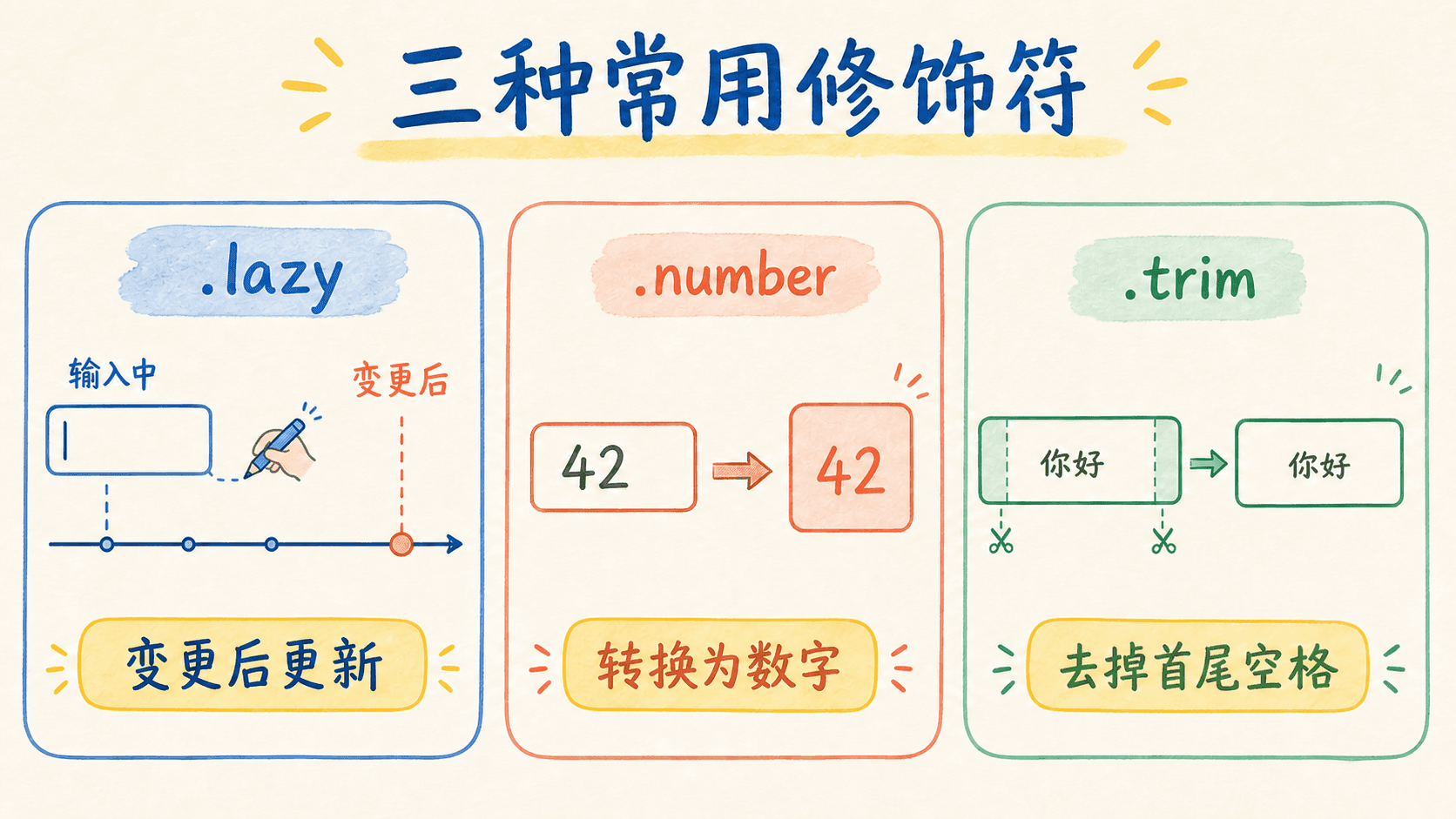
.lazy 换事件时机,.number 尝试转换数值,.trim 清理首尾空白。lazy:从每次输入改成确认改变后同步
默认文本输入使用 input 事件,键入一个字符就同步一次。加上 .lazy 后改为监听 change。对文本框来说,通常要在内容发生变化后离开控件,或用浏览器认可的方式确认编辑,状态才更新。
vue
<script setup>
import { ref } from 'vue'

const liveNote = ref('')
const committedNote = ref('')
</script>

<template>
  <label for="live-note">实时同步</label>
.lazy 适合不需要逐字反馈的备注、昂贵计算的触发条件,或者明确希望用户完成编辑后再处理的场景。但“减少更新”不等于一定“性能更好”。普通表单的响应式更新通常很轻,实时显示字符数、即时筛选和边输边校验反而需要默认行为。先确定交互时机,再决定是否使用它。
还要区分 .lazy 和防抖。.lazy 是换成 change 事件;防抖仍可能基于 input,只是在用户短暂停止输入后再执行搜索或请求。两者解决的问题不同。
number:尽量得到数字,但空值仍然是空字符串
DOM 输入值天然是字符串。.number 会尝试用数值规则转换可解析的内容;无法解析时保留原值,清空输入框时得到的是空字符串,不是 0。
vue
<script setup>
import { ref } from 'vue'

const age = ref('')
</script>

<template>
  <label for="age">年龄</label>
  <input
    id="age"
    v-model.number="age"
输入 18 后,age 是数字 18;删除全部内容后,它又是字符串 ''。因此验证不能只写 if (!age),因为这会把数字 0 和空输入混为一谈。可以明确判断 age === '',再用 Number.isFinite(age)、范围条件处理数字。
type="number" 的 v-model 会自动采用数值转换行为,不过显式写 .number 能让读代码的人更快意识到状态类型。它仍不等于完整验证:最小值、最大值、是否允许小数、业务上是否合理,都需要另外说明和检查。
电话号码、身份证号、邮政编码不应该因为“看起来全是数字”就使用 .number。这些值可能有前导零,也不参与数学运算,本质上是标识文本。把它们保存为字符串更合适。
trim:去掉首尾空白,不碰中间内容
.trim 会清理字符串开头和结尾的空白,适合用户名、邮箱、短标题等字段。
vue
<script setup>
import { ref } from 'vue'

const displayName = ref('')
</script>

<template>
  <label for="display-name">显示名称</label>
  <input id="display-name" v-model.trim="displayName"
它不会删除中间空格,所以“欧阳 小明”中间的空格仍会保留。对密码不要擅自使用 .trim:空格可能就是用户密码的一部分。对长文章也要先确认业务规则,有些内容确实需要保留首尾换行。
修饰符可以组合,例如 v-model.lazy.trim="title"。阅读顺序仍然是:等到改变被确认,再把整理后的文本写入状态。组合之前最好能用一句业务话解释每个修饰符为什么存在;解释不了的就先别加。
中文输入法:拼音还没选成汉字时,不要抢着处理
中文、日文、韩文等输入法会经历“组合输入”。用户键入 biaodan 时,屏幕上可能暂时显示拼音候选,直到选择“表单”后才形成最终文字。在 compositionstart 与 compositionend 之间,输入法仍在组织内容。

Vue 的普通 v-model 会避开组合过程中的中间 input 更新,等组合完成后再同步最终结果。这通常正是我们想要的行为。假设输入框绑定搜索,如果每敲一个拼音字母都发一次搜索请求,用户还没选好汉字,页面就会拿着 b、bi、bia 去搜索,结果闪动又没有意义。
vue
<script setup>
import { ref } from 'vue'

const keyword = ref('')

function search() {
  console.log('搜索最终关键词:', keyword.value)
}
</script>

<template>
  <
如果产品真的需要观察组合阶段,例如制作输入法调试器或非常特殊的实时预览,就可以放弃这一处的 v-model,手动绑定 value 与 input,并读取事件的组合状态:
vue
<script setup>
import { ref } from 'vue'

const draft = ref('')
const composing = ref(false)

function handleInput(event) {
  draft.value = event.target.value
这段代码是为了看清事件过程,不是日常表单的推荐模板。常规搜索可以在提交时触发,或者在最终状态变化后防抖处理。不要为了“更实时”破坏输入法本身的节奏。
调试中文输入问题时,可以在开发者工具中临时记录 compositionstart、compositionupdate、compositionend 和 input 的顺序,并观察 InputEvent.isComposing。不要只用英文键盘测试;英文输入没有组合阶段,很容易让问题在开发时完全消失,直到中文用户真正使用才暴露。
回车键在组合输入期间可能用于确认候选字。如果你给输入框绑定“按回车立即提交”,需要确认事件不在组合阶段,否则用户只是选了一个汉字,表单却被提前提交。
提交表单:在 form 上接住 submit,而不是只盯着按钮点击
表单提交不只来自鼠标点击。用户在文本框里按 Enter、辅助技术触发表单操作,或者代码激活提交按钮,都可能产生 submit 事件。因此提交逻辑应该写在 <form @submit> 上,而不是只写在某个按钮的 @click 上。
vue
<script setup>
import { ref } from 'vue'

const email = ref('')

function handleSubmit() {
  console.log('准备提交:', email.value)
}
</script>

<template>
  <
.prevent 对应原生的 event.preventDefault(),它阻止浏览器按 action 进行页面跳转或刷新,让当前函数接管提交。如果你本来就希望浏览器按传统方式提交到服务器,就不要加 .prevent。
第二个按钮明确写了 type="button"。因为 <form> 里的 <button> 默认通常就是提交按钮,忘记写类型会导致“点击清空却触发提交”这类很隐蔽的问题。提交、重置、普通操作各自是什么角色,应该在标签上写清楚。
浏览器约束和业务验证各做什么
HTML 已经能表达不少基础约束:required 表示必填,type="email" 检查邮箱格式,min 与 max 限定数值范围,minlength 与 maxlength 限定文本长度。它们能提供键盘适配、浏览器提示和基本验证,是很好的第一道防线。
业务规则通常更具体。例如“至少选择两个主题”“如果选择线下参加,就必须选择城市”“邮箱不能与已有账户重复”,这些不是单个 HTML 属性能完整表达的,需要 JavaScript 或服务端参与。
浏览器端验证永远不是安全边界。用户可以关闭脚本、修改页面或直接构造请求。前端验证的目标是尽早给出清楚反馈,服务端仍要对收到的数据重新验证。两边的规则应该保持一致,服务端返回的错误也要回到对应字段附近,而不是只弹出一句“提交失败”。
完成一份可以运行的课程报名表
下面把前面的内容接成一个单文件组件。它包含文本、多行文本、数字、单选、复选、下拉框、修饰符、提交验证、错误关联和提交结果。把代码保存为 CourseSignup.vue,在一个 Vue 3 项目中导入即可使用。

vue
<script setup>
import { nextTick, reactive, ref } from 'vue'

const formElement = ref(null)
const submittedData = ref(null)

const initialForm = () => ({
  name: '',
  email
这份表单提交后会发生什么
先直接点击“提交报名”,验证函数会一次检查所有规则,然后把焦点移到第一个无效控件。每条错误都显示在字段附近,而不是集中堆在页面顶部。修正姓名后再次提交,焦点会继续落到下一个问题上,用户不需要自己在长表单里寻找红字。
选择“线上参加”时不需要城市;切换成“线下参加”后,城市字段出现,并成为业务上的必填项。兴趣数组至少要有两个值。年龄清空时按空字符串处理,填写 18 后按数字处理。全部通过后,下方会显示一份准备发送的数据对象。
这里用 novalidate 关闭了浏览器自动弹出的验证气泡,是为了统一展示我们写的中文错误。基础 HTML 属性仍然保留,因为它们还提供输入语义、键盘优化和清晰的约束声明。如果你的项目不需要自定义错误体验,可以去掉 novalidate,先让浏览器完成基础检查,再在提交函数里处理业务规则。
submittedData 创建了新对象,并复制了 topics 数组。这样结果区展示的是提交瞬间的快照。假如直接把响应式的 form 对象赋过去,用户提交后继续修改表单,结果区也会跟着变,看起来像已经提交的数据被悄悄篡改。
示例没有真的发送网络请求。接入接口时,可以在验证通过后构造请求体,设置“提交中”状态并禁用重复提交,捕获网络错误,最后把服务端字段错误合并回 errors。提交失败时不要清空用户已经填写的内容;让用户修正具体字段比从头再填友好得多。
表单状态的一生:初值、填写、回填、提交与重置
前面的代码解决了“控件怎么绑定”,真实页面还会经历更长的过程:打开时创建初值,用户逐步填写,可能从接口回填旧资料,提交时制作快照,成功后决定保留还是清空,失败时又要留下现场让人修改。把这些阶段都塞进一个 form 对象不算错,但要清楚每一步到底在改什么。
初值要完整,不要等用户操作后才临时长出字段
推荐在组件创建时就写出完整的数据形状。即使某个字段暂时隐藏,也可以先给它合理初值。这样模板、验证函数和请求体看到的字段是一致的,调试输出也不会出现一会儿有 city、一会儿没有 city 的情况。
vue
<script setup>
import { reactive } from 'vue'

function createEmptyForm() {
  return {
    name: '',
    age: '',
    attendance: 'online',
    city: '',
    topics: [],
    agree: false
  }
为什么把初值写成函数,而不是直接保存一个对象常量?因为重置时需要一份全新的初值。假如多个地方一直复用同一个带数组的对象,某次对 topics 的修改可能污染你以为“永远空白”的模板。函数每次返回新对象,也把默认规则集中在一个地方。
不要用 form = createEmptyForm() 替换一个由 reactive 创建且声明为 const 的对象。模板追踪的是原来的代理,正确做法是 Object.assign(form, createEmptyForm()),把新字段值复制进去。若表单本身用 ref 保存对象,则可以写 form.value = createEmptyForm()。两种方式都能工作,关键是别把 reactive 与 ref 的替换规则混在一起。
回填不是把接口对象原样塞进表单
编辑资料页面常常先请求已有数据。接口字段可能缺失,也可能包含当前页面根本不编辑的内容。更稳妥的做法是明确映射,并给缺失字段兜底:
vue
<script setup>
import { reactive } from 'vue'

const form = reactive({
  name: '',
  age: '',
  city: '',
  topics: []
})

function fillFromProfile(profile) {
这里没有 Object.assign(form, profile),因为接口的 cityCode 与页面的 city 命名不同,也因为我们不希望未知字段混入可编辑状态。数组重新复制,避免后续勾选操作意外修改其他地方仍在使用的原数组。
回填发生在异步请求之后时,v-model 会把新状态显示到控件上,不需要手动查询 DOM 再写 value。如果某个下拉框仍然没有选中,先比较回填值与每个选项值的类型和值,而不是用延时器强迫页面“再渲染一次”。
显示错误的时机也属于状态设计
有些表单每输入一个字符就报错。用户刚在姓名框里打出第一个字,旁边立刻出现“至少两个字符”,这种反馈虽然实时,却不一定友好。常见策略是保存一个 touched 状态:字段失去焦点后才显示该字段错误,提交时再把所有相关字段标记为已触碰。
vue
<script setup>
import { reactive } from 'vue'

const touched = reactive({
  name: false,
  email: false
})

function touch(field) {
  touched[field] = true
}
</script>
这里的 touched 回答“用户是否已经离开过这个字段”,errors 回答“当前值违反了什么规则”。不要把两件事揉成一个真假值,否则很难同时处理“有错误但暂不显示”和“错误已经修好”这两种状态。
还有一个常见状态叫 dirty,表示当前值是否与初始值不同。它适合离开页面前提醒未保存修改,或者控制“保存”按钮是否可用。touched 关注操作过程,dirty 关注值是否变化,errors 关注规则结果,三者用途不同。小表单不一定全都需要,但命名要对应真实含义。
提交时制作面向接口的数据,不要直接发送整个响应式对象
页面状态是为交互设计的,请求体是为接口设计的。它们可以相似,却不必完全一样。比如页面用 '' 表示尚未填写年龄,接口可能要求 null;页面保存完整选项对象,接口只要选项 id;页面有 agree 用来控制是否能提交,但接口并不需要长期保存它。
vue
<script setup>
function createPayload() {
  return {
    name: form.name,
    age: form.age === '' ? null : form.age,
    attendanceMode: form.attendance,
    cityCode: form.attendance ===
这个转换层能把页面和接口边界说清楚。以后接口改字段名或空值规则,只需改 createPayload,不用让模板跟着变。也不要把 Vue 的响应式代理对象直接交给长期缓存或日志系统;制作普通对象快照更容易检查,也避免之后的表单修改影响已经记录的结果。
提交中、成功和失败都应该有明确表现
点击提交后到请求结束前,页面处于“提交中”。这段时间可以禁用提交按钮防止重复请求,但不要把整张表单都变成不可读取。按钮文字可以改为“正在提交…”,结果区域使用适度的状态提示。
失败分两类更容易处理。网络失败或服务不可用属于表单级错误,适合放在操作按钮附近;“这个邮箱已经注册”属于字段级错误,应该放回邮箱旁边并建立描述关联。无论哪种失败,都应保留用户已经填写的内容。
成功后也不一定立即清空。报名类页面通常先展示确认结果,让用户知道究竟提交了什么;连续录入工具才可能在成功后马上创建一张新空表。重置行为应由场景决定,不能把“提交成功就清空”当成固定规则。
如果请求已经发出,用户又快速修改了表单,结果提示应对应提交时的快照,而不是当前正在编辑的值。这也是完整示例中复制对象和数组的原因。页面状态会继续变化,提交记录不应该跟着漂移。
重置不仅是清空输入框
一次完整重置通常要同时处理表单值、错误、触碰状态、提交结果和表单级提示。只调用原生 form.reset() 可能让 DOM 回到标签初值,却没有同步你的 Vue 状态;只清空 Vue 状态又可能留下旧错误。既然绑定状态是数据来源,重置就从状态出发统一完成。
vue
<script setup>
function resetEverything() {
  Object.assign(form, createEmptyForm())
  Object.assign(errors, createEmptyErrors())
  Object.assign(touched, createEmptyTouched())
  submittedData.value = null
  submitError.
重置按钮必须是 type="button"。如果用户已经填写很多内容,是否要先确认也取决于损失大小:三项小筛选可以直接重置,一份二十分钟才填完的申请表则应该避免误触。技术上“能清空”只是第一步,还要考虑用户是否能预料这次操作的后果。
可访问性不是装饰:让字段、说明和错误形成关系
表单可访问性最基础的动作,是给每个控件一个能被识别的名称。最稳妥的写法是 label[for] 与控件 id 一一对应。点击标签文字时,焦点也会进入输入框;点击复选框的标签时,勾选区域等于变大了。
单选和多选问题应该用 <fieldset> 包住,用 <legend> 写组名。“参加方式”不是某个单选框的标签,而是这一组共同回答的问题。只用普通 <div> 和视觉标题,屏幕阅读器可能无法在每个选项上带出问题背景。
提示文字和错误文字则通过 aria-describedby 与控件关联。用户聚焦邮箱字段时,辅助技术可以读到“报名结果会发送到这个地址”;验证失败后,关联切换到具体错误。aria-invalid="true" 表明当前值无效,但它不会自动说明为什么,所以仍要保留可见且可关联的错误文本。
不要只用颜色表达错误。红色边框可以帮助一部分用户快速扫描,但“姓名至少需要 2 个字符”才真正告诉人如何修正。错误出现时也不要让布局剧烈跳动,尤其不要把输入焦点无缘无故移走。
autocomplete 同样很实用。姓名、邮箱、地址等字段使用合适的自动填充标记,能减少重复输入,也能帮助某些认知或动作障碍用户。它不是“浏览器擅自填表”,而是用户可以控制的输入辅助。
不要拿 placeholder 代替 label。占位文字在开始输入后就会消失,用户回头检查时可能忘记这一格要填什么;低对比度的占位文字也不适合承担字段名称。label 始终保留,placeholder 只用来给出很短的格式示例。比如标签写“项目地址”,占位文字可以写“北京市朝阳区……”,两者职责不同。
同一页面的 id 必须唯一。复制一整段字段模板后如果忘记改 id 和 for,点击第二个标签可能把焦点送到第一个输入框,错误描述也可能关联错对象。动态列表中的字段可以把条目 id 拼进控件 id,但要保证这个业务 id 稳定,不能每次渲染都随机生成。
必填状态也要用文字或语义表达,不能只在标签旁画一个没有解释的红色星号。可以直接写“邮箱(必填)”,同时保留 required 或相应验证规则。若星号是设计要求,就在表单开头说明其含义,并确保辅助技术也能获得相同信息。
错误区域使用 aria-live 时要克制。整张表单每次敲键都高声播报所有错误,会打断输入。字段错误通常在失焦或提交后出现即可;提交成功、网络失败这类表单级状态更适合放入温和的实时区域。目标是让变化可感知,不是让页面不停抢话。
最后,用键盘完整走一遍表单:Tab 顺序是否符合阅读顺序,焦点轮廓是否看得见,空格能否勾选复选框,方向键能否切换单选项,Enter 能否提交,错误后焦点是否回到问题字段。鼠标能点通只证明了一条操作路径。
调试表单:先看状态、类型、事件,再看样式
表单出错时,最容易做的是盯着页面反复点。更有效的方法是沿着 v-model 的两条通路检查:状态有没有正确传到控件,控件事件有没有把正确类型的值送回来。
建一个临时状态观察窗
开发阶段可以在表单旁边临时输出状态与类型:
vue
<template>
  <pre>{{ JSON.stringify(form, null, 2) }}</pre>
  <p>年龄类型:{{ typeof form.age }}</p>
  <p>兴趣是否为数组:{{ Array.isArray(form.topics) }}</p>
</template>
当“选项看起来勾上了但提交不对”时,这个观察窗往往马上能揭示字符串与数字不一致、数组初值写成字符串、空值被误当成零等问题。问题解决后再移除调试输出,避免把用户数据暴露在正式页面。
Vue 开发工具也能观察组件状态。切换控件后确认对应字段是否变化;用代码修改状态,再确认 DOM 是否回显。如果只有一个方向不通,就回到该控件对应的属性和事件检查,而不是重写整张表。
常见坑逐个排除
输入框有 value,状态却是空的
检查是否同时写了 v-model="name" 与静态 value="小明"。绑定状态才是初始值来源,应改成 const name = ref('小明')。
textarea 里的默认文字没有进入状态
不要写 <textarea v-model="bio">默认文字</textarea>,也不要在标签中间放插值。把默认内容写入 bio 的初值。
复选框数组不能正确回显
检查数组元素与选项 value 的类型。[1, 2] 无法匹配 value="1" 这种字符串;把选项写成 :value="1",或者让数组统一保存字符串。
单选框都没有选中
所有选项应绑定同一个状态,每项的 value 必须与初值严格对应。不要给每项各建一个变量,也不要混用数字 1 和字符串 '1'。
select 初次显示空白
状态值可能不匹配任何 <option>。为“未选择”准备一个 value="" 的禁用选项,并让初值明确设为 '';或者确保接口回填值确实存在于选项列表。
number 清空后验证结果奇怪
.number 的空输入是 ''。先判断空字符串,再判断是否为有限数字与范围。不要用 form.age || 0 静默把“没填”改成零。
点击普通按钮却提交了表单
检查按钮是否漏了 type="button"。只有真正提交的按钮使用 type="submit"。
点击提交没问题,按 Enter 却没反应
提交逻辑可能绑在按钮的 @click 上。把它移到 <form @submit.prevent="handleSubmit">,让所有提交路径共享一个入口。
中文输入时搜索频繁闪动或提前提交
检查是否自己写了 @input 并忽略组合状态,或者回车处理没有避开输入法确认阶段。常规字段优先使用 v-model;必须手动处理时观察 event.isComposing。
页面显示了错误,辅助技术却读不到
检查错误元素是否有稳定 id,对应控件是否通过 aria-describedby 指向它,并在无效时设置 aria-invalid。同时保留可见文本,不要只改边框颜色。
文件选择框无法用 v-model
<input type="file"> 的值受浏览器安全规则限制,不能像普通文本一样由脚本写回。用 @change 读取 event.target.files,把 File 对象放进状态;需要清空时再通过受控的 DOM 引用处理。这是控件协议不同,不是响应式失效。
调试顺序可以固定成四步:确认状态初值,确认绑定值的类型,确认控件使用的属性与事件,最后确认提交和验证路径。大部分表单问题都能在前两步找到。
预览:组件上的 v-model(第 9 章再展开)
这一章的主线仍然是原生表单控件,下面这段只是一张提前露面的预告卡,不要求现在掌握组件通信。以后把输入框封装成 BaseInput、日期选择器或评分组件时,v-model 仍然沿用“向下传值、向上发事件”的约定,只是 DOM 事件换成组件事件。
在较新的 Vue 3 单文件组件里,子组件可以用 defineModel() 声明这条通路:
vue
<!-- BaseInput.vue -->
<script setup>
const model = defineModel({ required: true })

defineProps({
  id: {
    type: String,
    required: true
  },
  label: {
    type: String,
    required
父组件使用时仍然很简洁:
vue
<script setup>
import { ref } from 'vue'
import BaseInput from './BaseInput.vue'

const nickname = ref('')
</script>

<template>
  <BaseInput id="nickname" v-model="nickname" label="昵称" />
</template概念上,defineModel() 会对应一个向下接收的模型值和一个向上通知更新的事件。它没有创造第二份独立状态。子组件修改模型时,更新事件让父组件的 nickname 变化,父组件的新值再传回子组件。
现在只需要建立这个印象,不必急着一次学完参数形式、多个模型和自定义修饰符。第 9 章会从组件通信的角度正式展开属性、事件与组件 v-model;到时再回来看这段代码,你会发现它仍然是同一条数据回路。
练习:把表单协议说清楚,再动手写
练习一:展开 v-model
把下面的文本输入改写成显式的属性绑定与事件监听,运行后应保持相同行为。
vue
<script setup>
import { ref } from 'vue'

const title = ref('表单练习')
</script>

<template>
  <input v-model="title" />
  <p>{{ title }}</p>
</template>练习二:修复类型不匹配
下面的页面希望默认选中“2 人”,但不会正确回显。找出原因并修复。
vue
<script setup>
import { ref } from 'vue'

const count = ref(2)
</script>

<template>
  <label><input v-model="count" type="radio" value="1" /> 1 人</label>
  <
练习三:设计一组状态
制作“学习偏好”表单,包含一个昵称输入框、一个是否接收提醒的复选框、一组三选一的学习时段、至少两个可选主题和一个城市下拉框。先在纸上写出每个字段的初值与类型,再写模板。
练习四:观察中文组合输入
做两个输入框。第一个使用普通 v-model,第二个手动监听 input、compositionstart 和 compositionend。打开中文输入法输入“响应式”,记录两个状态在选词前后的变化。
练习五:给报名表补上异步提交状态
在完整报名表中增加 submitting 与 submitError。验证通过后等待一个模拟请求;等待期间禁用提交按钮并显示“提交中”;失败时保留所有已填内容并显示错误;结束后恢复按钮。
小测:你是在背写法,还是已经看见数据流
1
文本输入框上的 v-model 主要展开成哪一组属性与事件?
2
const age = ref('') 配合 v-model.number 时,用户清空输入框后 age 通常是什么?
3
下列哪些做法能让表单错误更容易理解和操作?
4
双向绑定表示 DOM 值与 JavaScript 状态是两份地位相同、互相监视的数据。
5
只要前端验证通过,服务端就可以直接信任提交数据。
表单有了状态,别急着再复制一份
现在再看 v-model,你应该能看到它背后的具体动作:状态把值传给控件,控件在合适的事件发生后把新值交回来。文本框和多行文本使用 value 与 input;复选框、单选框关心 checked 与 change;下拉框根据选项收集一个值或一组值。表面相同的指令,尊重的是各类原生控件自己的协议。
写表单时,先确定每个问题对应的数据形状:是字符串、布尔值、数字、单选值,还是数组。然后再选控件、初值和修饰符。.lazy 调整同步时机,.number 尝试转换数字,.trim 清理首尾空白,它们都不能替代业务验证。
最后别把注意力只放在“数据拿到了没有”。提交入口应放在 form 的 submit 事件上,错误要出现在字段附近并建立描述关系,标签、分组、键盘焦点和服务端复验都属于表单本身。做到这些,一张表单才从演示代码变成真正可以交给别人使用的界面。
报名表已经能可靠地收集源数据,但页面很快又提出了三项要求:显示填写完成度、判断当前能否提交、生成一段报名摘要。最直接的冲动,是再准备三份可修改状态:
js
const completion = ref(0)
const canSubmit = ref(false)
const summary = ref('')
问题是,这三个答案都能从现有的 form 得到。若每个字段变化后都手动同步它们,究竟要更新几处,漏掉一处时又该相信 form 还是这些 ref?这不是新的表单协议,而是“已有状态如何算出另一个值”的问题。
产品随后又补了一项需求:字段变化后自动保存草稿。若把保存动作直接挂到每个控件上,代码很快会变成这样:
vue
<input v-model="form.name" @input="saveDraft" />
<input v-model="form.email" @input="saveDraft" />
<textarea v-model="form.introduction" @input="
模板开始重复,连续输入还可能在短时间内发出许多保存请求;较早的请求如果更晚返回,甚至可能盖过较新的草稿。这里需要的不是再换一种绑定,而是“状态变化后怎样执行动作,并避免无意义的重复工作”。
这两段待处理代码面对的是两类不同问题:完成度、可提交状态和摘要需要从现有表单状态得到派生答案,自动保存则需要在字段变化后执行动作。computed 与 watch、watchEffect 分别是两边最值得检查的候选。真正要先回答的选择题是:眼前这段逻辑,究竟只是在“算出一个值”,还是要在“变化后做一件事”?