数据可视化:把数据画清楚,也把结论讲明白
拿到一张数据表以后,很多人会下意识地问:“用哪一行代码能画图?”这个问题当然要解决,但它不是最先该问的。更靠谱的起点是:我想让读者比较什么,数据又是否真的支持这种比较? 同一列数字可以画成折线图、柱状图或直方图,代码都能运行,表达的意思却完全不同。图形选错了,画得再精致也只是在清楚地说错话。
这一章不把 Matplotlib 当成函数清单来背。我们会跟着一份小型业务数据走完整条路:先明确问题,再整理数据,接着选择图形、控制 Figure 与 Axes、补齐标签和注释,最后检查图有没有误导并保存成可交付的文件。过程中还会穿插中文字体、seaborn、子图布局以及那些“代码不报错,图却不对劲”的坑。
学完以后,你应该能独立完成三件事:知道一组数据该用什么图;能用对象式写法稳定地画出它;能像审稿人一样检查图中有没有遗漏、遮挡或不诚实的视觉暗示。

先明确想从数据中看出什么,再选择真正适合的图表。
本章示例使用 Matplotlib、NumPy、pandas 和 seaborn。建议先运行“准备一份贯穿全章的数据”中的代码,后续示例会继续使用其中的 daily、products 和 orders。每段绘图代码都会显式创建 Figure 和 Axes,这样在脚本、Notebook 和批量制图任务里都更容易判断图究竟画到了哪里。
先决定要回答什么,再决定画什么
刚开始画图时,最容易出现的情况是:看到两列数字就画散点图,看到日期就画折线图,看到分类就画饼图。这种“按数据长相选图”的方法偶尔能碰对,却忽略了真正决定图形的东西——你的问题。
假设我们有一家网店的运营记录。下面五个问题看起来都在问“数据怎么样”,实际上比较方式完全不同:
这张表有一个很实用的规律:先用动词描述任务。 “看变化”“比大小”“找关系”“看分布”“比多组分布”,比“我想做一个好看的图”更容易带你走到正确图形。
折线图回答顺序和连续变化
折线会把相邻点连起来,因此它在视觉上暗示了顺序和连续过程。时间序列最常见,但并不是所有带日期的表都能直接画。日期乱序时,线会在横轴上来回折返;缺少某一天时,线会直接跨过去,让人误以为中间也测到了数据;把没有自然顺序的商品类别连起来,则会凭空制造“过程”。
折线图适合问“什么时候开始上升”“峰值出现在哪一天”“两条趋势是否同步”。它不适合问“苹果和键盘之间经历了怎样的变化”,因为这两个类别之间根本没有连续路径。
柱状图回答类别之间的大小差异
柱子的长度编码数值,读者会拿柱底作为共同基准比较。因此普通柱状图通常应该让数值轴从 0 开始。假如销量分别是 98 和 102,却把纵轴截在 97,两个只差 4 件的品类会看起来像差了几倍。
类别名称很长时,横向柱状图通常比把横轴文字旋转 90 度更好读;类别很多时,先按数值排序并只展示真正要比较的部分,比把几十根柱子挤在一起更有效。分组柱状图可以比较少量系列,系列一多,颜色和位置都会变成负担。
散点图回答两个数值变量的关系
散点图中的每个点通常代表一条观测,例如一日运营记录或一笔订单。点云朝右上方延伸,说明两个变量往往同向变化;点云分成几团,可能是不同渠道或地区混在一起;远离主体的点值得核查,但不能只凭“看起来很远”就删掉。
相关关系也不等于因果关系。广告投入高的日子订单更多,可能因为广告起效,也可能因为周末本来流量就大,而运营团队恰好也在周末追加预算。图可以提示下一步调查方向,不能替代实验设计。
直方图和箱线图回答分布问题
直方图会把数值范围切成若干区间,再统计每个区间有多少观测。它让我们看到集中位置、偏斜、双峰和长尾,但形状会受分箱边界与箱数影响。同一份数据用 5 个箱和 50 个箱,讲出来的故事可能完全不同,所以 bins 不是装饰参数。
箱线图把中位数、四分位范围和按规则识别的离群点压缩在一张图里,适合并排比较多组分布。它的紧凑也是代价:看不到每个峰的形状,样本量很少时还可能显得比实际更“稳定”。需要时可以叠加轻微抖动的原始点,或者同时给出每组样本数。
下面的实验室会先给你一个分析问题,再让你选择图形。别急着点答案,先试着用“变化、比较、关系、分布”中的一个词概括任务。
准备一份真正能画的数据
很多“绘图错误”其实不是画图函数的问题,而是数据在进图之前就乱了。日期还是字符串、金额混入了空值、类别前后带空格、同一天重复记录、横纵坐标长度不一致——这些情况最好在画图前暴露出来,而不是等图长得奇怪时再猜。
下面创建三张贯穿全章的表。数据是固定的,随机部分也使用固定种子,因此你重复运行能得到同样结果。
import numpy as np
import pandas as pd
import matplotlib.pyplot as plt

# 每日运营数据:用于时间趋势和变量关系
daily = pd.DataFrame({
    "date": pd.date_range("2026-07-01", periods=14, freq="D"),
    "orders": [118, 126, 121, 137, 145, 151, 148, 162, 170, 166, 181, 190, 187, 205],
    "revenue": [13520, 14860, 14130, 15990, 17340, 18220, 17980,
                19710, 20960, 20420, 22580, 23840, 23210, 25760],
    "ad_spend": [1800, 1900, 1850, 2100, 2250, 2400, 2300,
                 2550, 2700, 2650, 2920, 3100, 3050, 3380],
})

# 品类汇总:用于类别比较
products = pd.DataFrame({
    "category": ["办公用品", "厨房用品", "数码配件", "清洁用品", "户外用品"],
    "orders": [426, 318, 512, 284, 367],
    "revenue": [38200, 41700, 76900, 24600, 53800],
    "return_rate": [0.032, 0.041, 0.067, 0.025, 0.048],
})

# 订单明细:用于分布和分组比较
rng = np.random.default_rng(202608)
n = 360
orders = pd.DataFrame({
    "channel": rng.choice(["自然访问", "内容推荐", "付费广告"], n,
                          p=[0.38, 0.34, 0.28]),
    "region": rng.choice(["华东", "华南", "华北"], n),
    "amount": rng.lognormal(mean=4.65, sigma=0.48, size=n).round(2),
    "delivery_hours": rng.normal(loc=35, scale=8, size=n).clip(10, 72).round(1),
})

print(daily.head())
print(products)
print(orders.describe(include="all"))
画图前做一轮小体检
不要一上来就 plot()。先看列名、类型、缺失值、重复记录和取值范围,这几十秒通常能省下后面十几分钟排错。
print(daily.dtypes)
print(daily.isna().sum())
print("重复日期数:", daily["date"].duplicated().sum())
print("日期是否递增:", daily["date"].is_monotonic_increasing)
print("订单量范围:", daily["orders"].min(), "到", daily["orders"].max())

required = {"date", "orders", "revenue", "ad_spend"}
missing_columns = required - set(daily.columns)
if missing_columns:
    raise ValueError(f"缺少绘图所需列:{sorted(missing_columns)}")

if daily["date"].duplicated().any():
raise ValueError("同一天出现了多条记录,请先决定求和、求均值还是保留明细")这类检查不是为了追求“数据绝对干净”,而是逼自己把处理规则说清楚。例如订单金额缺失,直接删掉会不会改变渠道占比?同一天两条记录,是重复录入,还是两个门店的合法明细?在不知道原因时,dropna() 和 drop_duplicates() 都不该成为条件反射。
顺序、粒度和口径要先对齐
画时间趋势前按日期排序;画类别比较前先聚合到目标粒度;比较金额时确认单位一致。下面演示如何从订单明细得到“按渠道汇总”的表,并把样本量一起保留下来。
channel_summary = (
    orders
    .dropna(subset=["channel", "amount"])
    .groupby("channel", as_index=False)
    .agg(
        order_count=("amount", "size"),
        median_amount=("amount", "median"),
        mean_amount=("amount", "mean"),
    )
    .sort_values("median_amount", ascending=True)
)

daily = daily.sort_values("date").reset_index(drop=True)

print(channel_summary.round(2))
assert len(daily["date"]) == len(daily["revenue"])
这里保留 order_count 很重要。两个渠道的中位金额相近,如果一个渠道有 300 笔订单,另一个只有 7 笔,结论的稳定程度不一样。图上不一定要塞进所有统计量,但制图者必须知道自己正在比较什么。
NumPy 的形状决定数据能否配对
Matplotlib 画折线或散点时,横坐标与纵坐标需要能一一配对。最常见的报错是 x and y must have same first dimension。先看 .shape,比盯着绘图语句更快。
x = daily["ad_spend"].to_numpy()
y = daily["orders"].to_numpy()

print("x 形状:", x.shape)
print("y 形状:", y.shape)

if x.shape[0] != y.shape[0]:
    raise ValueError("广告投入和订单量的记录数不一致,不能逐点配对")
二维数组还要留意方向。形状 (14, 3) 通常可理解为 14 条观测、3 个变量,axis=0 聚合后得到每一列的结果,axis=1 聚合后得到每一行的结果。把轴理解反了,代码可能照样运行,却会把“每个变量的均值”画成“每条记录的均值”。
折线图遇到缺失值时通常会断线,这可能是诚实的表达:那段时间确实没有观测。不要为了让线好看就无条件插值。只有当业务上允许估算、缺口足够短,而且图注说清处理方法时,才考虑填补;否则保留断点或明确标记“缺数”更可靠。
看懂 Figure、Axes 和 Artist 的分工
Matplotlib 最让新手困惑的地方,不是参数多,而是同一张图能用两套看起来很像的写法。网上经常同时出现 plt.title(...) 和 ax.set_title(...)。它们都能改标题,但背后的工作方式不一样。
你可以把一张 Matplotlib 图拆成三层:
Figure是整张画布,负责整体尺寸、布局、保存以及跨子图标题。Axes是画布中的一个绘图区,负责坐标系、数据图形、刻度、轴标签、图例和局部标题。Artist是实际被画出来的对象,包括线、柱子、散点集合、文字、图例等。
Axis 和 Axes 只差一个字母,却不是同一个东西。一个 Axes 通常包含 x、y 两个 Axis 对象;前者是整个绘图区,后者管理某一条坐标轴的刻度与刻度文字。
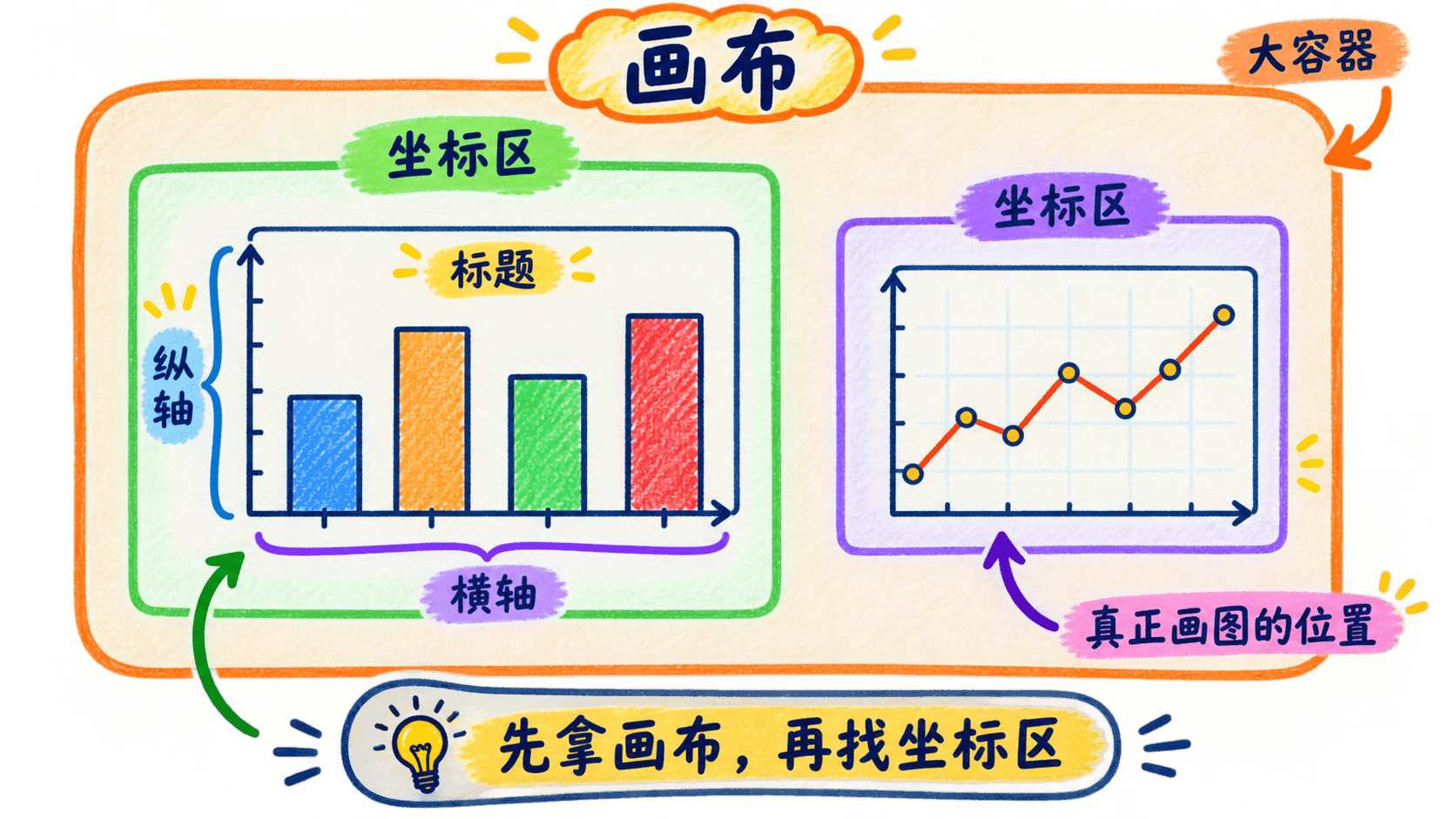
画布是容纳图形的大容器,坐标区才是真正承载数据图形的位置。
用对象式写法保留明确的控制权
fig, ax = plt.subplots(figsize=(9, 4.8), layout="constrained")

line, = ax.plot(
    daily["date"],
    daily["revenue"],
    color="#2463A8",
    marker="o",
    linewidth=2.2,
    label="每日营收",
)

ax.set(
    title="两周营收变化",
    xlabel="日期",
    ylabel="营收(元)",
)
ax.grid(axis="y", alpha=0.25)
ax.legend()

print(type(fig).__name__)   # Figure
print(type(ax).__name__)    # Axes
print(type(line).__name__)  # Line2D

plt.show()
plt.subplots() 一次返回 Figure 和 Axes 的引用。之后每个动作都明确告诉 ax:“把这条线画在你这里”“把标题设在你这里”。当画布有多个子图时,这种写法不容易串台,也更方便把绘图逻辑封装成函数。
如果 Figure、Axes、Axis 和 Artist 仍容易混在一起,可以在下面的解剖台中逐层点击。切换单图和双图布局时,留意 Figure 仍然只有一个,而 Axes 的数量会变化。
pyplot 为什么简单,又为什么容易串台
下面的状态式写法适合在交互环境里快速试一张小图:
plt.figure(figsize=(8, 4))
plt.plot(daily["date"], daily["orders"], marker="o")
plt.title("每日订单量")
plt.xlabel("日期")
plt.ylabel("订单数")
plt.show()
它之所以短,是因为 pyplot 在背后记录“当前 Figure”和“当前 Axes”,plt.plot()、plt.title() 都会作用到它认为当前的对象上。只有一张图时很方便;循环批量出图、混合多个子图或中途创建了另一张 Figure 时,“当前”可能已经不是你以为的那个。

状态式写法顺着当前坐标区继续绘制,对象式写法则先指定目标对象再操作。
一个好用的约定是:用 plt.subplots() 创建对象,用 ax.* 完成绘制与局部设置,用 fig.* 处理整张画布和保存,最后用 plt.show() 展示、plt.close(fig) 释放。这样既利用 pyplot 的创建入口,又避免依赖隐式状态。
把绘图函数写成“接收 Axes”
真正可复用的函数不必自己决定画布大小,也不必偷偷 show()。让调用者传入 Axes,函数只负责在指定位置作图。
def draw_revenue(ax, data, *, color="#2463A8"):
    """在给定 Axes 上绘制营收趋势,并返回线对象。"""
    clean = data.sort_values("date")
    line, = ax.plot(
        clean["date"],
        clean["revenue"],
        color=color,
        marker="o",
        linewidth=2,
        label="营收",
    )
    ax.set(title="营收趋势", xlabel="日期", ylabel="元")
    ax.grid(axis="y", alpha=0.25)
    return line


fig, ax = plt.subplots(figsize=(9, 4.5), layout="constrained")
draw_revenue(ax, daily)
ax.legend()
plt.show()
这段函数以后既能画在单图里,也能画在仪表盘左上角。它返回线对象,调用者还可以继续改透明度、线型或标签。边界清楚以后,绘图代码会像搭积木,而不是一串只能按固定顺序执行的命令。
把五种常用图画对
选图只是第一步。接下来要让编码方式、数据粒度和标签配合起来。以下五个例子都沿用前面准备的数据,并坚持对象式写法。
折线图:先排序,再解释断点和波动
fig, ax = plt.subplots(figsize=(10, 4.8), layout="constrained")

sorted_daily = daily.sort_values("date")
ax.plot(
    sorted_daily["date"],
    sorted_daily["revenue"],
    color="#2463A8",
    marker="o",
    markersize=4.5,
    linewidth=2.2,
    label="营收",
)

ax.set_title("两周营收总体上升,中间有两次小幅回落", loc="left")
ax.set_xlabel("日期")
ax.set_ylabel("营收(元)")
ax.tick_params(axis="x", rotation=30)
ax.grid(axis="y", color="#B8C2CC", alpha=0.35)
ax.legend(frameon=False)

plt.show()
标题直接写出读图重点,比“营收折线图”更有信息量,但别把推测写成事实。图上只能看出总体上升和局部回落,不能仅凭这条线断言“广告策略成功”。如果要比较两条时间序列,还应确认频率、日期范围与单位一致。
折线上的每个标记不是必需的。点很多时,几十个标记会盖住线的形状,可以去掉 marker,或用 markevery=7 每隔若干点标一个。采样频率很高时也不要把所有刻度都印出来,刻度文字只是导航,不是数据表。
柱状图:用共同零点比较类别
ranked = products.sort_values("orders", ascending=True)

fig, ax = plt.subplots(figsize=(8.5, 4.8), layout="constrained")
bars = ax.barh(
    ranked["category"],
    ranked["orders"],
    color="#3E8E7E",
)

ax.set_title("数码配件订单最多,清洁用品最少", loc="left")
ax.set_xlabel("订单数")
ax.set_ylabel("")
ax.set_xlim(left=0)
ax.grid(axis="x", alpha=0.25)
ax.set_axisbelow(True)
ax.bar_label(bars, padding=4, fmt="%.0f")

plt.show()
横向排列让较长的中文品类名保持正常阅读方向。排序让比较更快,但顺序也可能有业务含义:月份、满意度等级、教育阶段都有自然顺序,不能为了整齐随意打乱。
柱顶数值适合类别不多的情况。类别达到二三十个时,标签会变成第二套刻度;这时可以只标注最关键的几根柱,或者让读者到配套表格里查精确值。图负责模式,表负责精确查询,两者不用互相冒充。
散点图:把每条观测保留下来
fig, ax = plt.subplots(figsize=(7.5, 5.2), layout="constrained")
points = ax.scatter(
    daily["ad_spend"],
    daily["orders"],
    s=58,
    color="#D06B3C",
    alpha=0.78,
    edgecolors="white",
    linewidths=0.7,
)

# 用一次多项式拟合画一条描述趋势的直线,不把它解释成因果关系
slope, intercept = np.polyfit(daily["ad_spend"], daily["orders"], deg=1)
x_line = np.linspace(daily["ad_spend"].min(), daily["ad_spend"].max(), 100)
ax.plot(x_line, slope * x_line + intercept,
        color="#2F4858", linestyle="--", linewidth=1.8,
        label="线性趋势")

ax.set(
    title="广告投入较高的日期通常也有更多订单",
    xlabel="广告投入(元)",
    ylabel="订单数",
)
ax.grid(alpha=0.22)
ax.legend(frameon=False)

plt.show()
alpha 能缓解点重叠,但不是万能的。如果十万条记录挤在一起,散点图会变成一团墨。可以抽取有代表性的样本、改用二维分箱图,或者汇总后再画;无论哪种,都要说明处理方式。
散点的颜色、大小和形状还能编码其他变量,但每加一个通道,读者就多一层解码任务。新手常把金额映射到点大小、渠道映射到颜色、地区映射到形状,再用透明度表示状态,结果图例比图还难读。先保住主问题,只增加真正影响解释的变量。
直方图:用多个分箱方案核对形状
fig, axs = plt.subplots(1, 2, figsize=(10, 4.2),
                        sharey=True, layout="constrained")

for ax, bins in zip(axs, [8, 20]):
    ax.hist(
        orders["amount"].dropna(),
        bins=bins,
        color="#7B6CB0",
        edgecolor="white",
    )
    ax.set_title(f"分成 {bins} 个区间")
    ax.set_xlabel("订单金额(元)")
    ax.grid(axis="y", alpha=0.2)

axs[0].set_ylabel("订单数")
fig.suptitle("同一份订单金额,用不同分箱检查分布是否稳定")

plt.show()
如果换一个合理的 bins,核心结论就完全翻转,说明你看到的形状可能只是分箱造成的。箱宽也要结合量纲解释:订单金额按 1 元分箱通常太碎,按 1000 元分箱又可能抹掉主体结构。
直方图纵轴默认是每箱计数。比较两个样本量不同的数据集时,计数会受总样本量影响,可以考虑 density=True,但这时纵轴是密度,不是百分比。要在标题、标签或说明中把口径讲清楚。
箱线图:比较分布,不把异常点当垃圾
channel_order = ["自然访问", "内容推荐", "付费广告"]
grouped_amounts = [
    orders.loc[orders["channel"] == name, "amount"].dropna()
    for name in channel_order
]

fig, ax = plt.subplots(figsize=(8, 4.8), layout="constrained")
box = ax.boxplot(
    grouped_amounts,
    tick_labels=channel_order,
    patch_artist=True,
    showmeans=True,
    meanprops={"marker": "D", "markerfacecolor": "white",
               "markeredgecolor": "#333333", "markersize": 5},
)

for patch, color in zip(box["boxes"], ["#6AAED6", "#72B7A1", "#E6A35C"]):
    patch.set_facecolor(color)
    patch.set_alpha(0.8)

ax.set_title("不同来源渠道的订单金额分布", loc="left")
ax.set_xlabel("渠道")
ax.set_ylabel("订单金额(元)")
ax.grid(axis="y", alpha=0.22)

plt.show()
箱体中间的线是中位数,箱体上下边通常对应第一、第三四分位数,箱外的点是按箱线图规则标出的潜在离群值。它们可能是大额真实订单,也可能是录入错误。正确动作是回到原始记录核查,而不是看到圆点就删除。
让标题、刻度、图例和注释各司其职
一张图不该要求读者先猜单位、颜色和时间范围。标题说明图在讲什么,轴标签说明变量和单位,刻度提供位置参照,图例解释视觉编码,注释指向少数关键点。它们分工明确,没必要把同一句话重复四遍。
标题写结论,副说明交代口径
“每日营收变化”只说了图的类型,“两周营收总体上升,7 月 10 日短暂回落”才告诉读者该看哪里。不过,结论标题必须能从图中直接得到。若回落原因尚未验证,就不要写“物流故障导致营收回落”。
fig, ax = plt.subplots(figsize=(10, 5), layout="constrained")
ax.plot(daily["date"], daily["revenue"],
        color="#2463A8", marker="o", linewidth=2)

ax.set_title("两周营收总体上升,期间出现两次日环比回落",
             loc="left", fontsize=14, pad=14)
ax.text(
    0,
    1.01,
    "统计口径:已支付订单;时间范围:2026-07-01 至 2026-07-14",
    transform=ax.transAxes,
    fontsize=9,
    color="#5C6770",
    va="bottom",
)
ax.set(xlabel="日期", ylabel="营收(元)")
ax.tick_params(axis="x", rotation=30)
ax.grid(axis="y", alpha=0.25)

plt.show()
transform=ax.transAxes 表示用 Axes 的相对坐标定位文字,(0, 1.01) 接近绘图区左上方。这样文字位置不依赖营收的具体数值范围。与之相对,业务事件通常应该用数据坐标标注,因为箭头要指向某一天、某个值。
图例只解释真正存在的视觉编码
调用 legend() 并不会自动理解你的意图。它会收集带有效 label 的 Artist。如果画了三条线却没写标签,图例不是空,就是只显示默认内容。
fig, ax = plt.subplots(figsize=(9, 4.8), layout="constrained")
ax.plot(daily["date"], daily["orders"],
        label="订单数", color="#2463A8", linewidth=2)
ax.plot(daily["date"], daily["ad_spend"] / 20,
        label="广告投入 ÷ 20", color="#D06B3C", linewidth=2,
        linestyle="--")

ax.set(title="订单数与缩放后的广告投入",
       xlabel="日期", ylabel="用于形态比较的数值")
ax.legend(title="系列", frameon=False, ncols=2)
ax.grid(axis="y", alpha=0.2)
plt.show()
这个例子故意把广告投入除以 20,让两条线能在同一量级比较形态。既然做了变换,图例和纵轴就必须说清楚,不能把变换后的值伪装成原始金额。更正式的交付中,最好先问是否真的需要把不同单位叠在一个坐标系里。
只有一条明显的线时,图例可能是多余的,直接在标题或线尾标注更省视线。图例遮住数据时,可以移到绘图区外,但也要检查保存后是否被裁掉。
刻度不是越密越精确
刻度太密时,文字会叠成黑块。日期轴可以使用日期定位器和格式器,让 Matplotlib 根据时间范围选取适量刻度。
import matplotlib.dates as mdates

fig, ax = plt.subplots(figsize=(9.5, 4.5), layout="constrained")
ax.plot(daily["date"], daily["orders"], marker="o", color="#3E8E7E")

locator = mdates.AutoDateLocator(minticks=4, maxticks=8)
ax.xaxis.set_major_locator(locator)
ax.xaxis.set_major_formatter(mdates.ConciseDateFormatter(locator))

ax.set(title="每日订单量", xlabel="日期", ylabel="订单数")
ax.grid(axis="y", alpha=0.25)
plt.show()
不要先用 set_xticklabels() 硬塞一串文字,却不同时确定刻度位置。刻度位置和刻度标签数量不匹配时,轻则警告,重则标签与数据错位。多数时候,使用定位器和格式器更稳。
注释只标关键点,并给文字留位置
peak_idx = daily["revenue"].idxmax()
peak_date = daily.loc[peak_idx, "date"]
peak_value = daily.loc[peak_idx, "revenue"]

fig, ax = plt.subplots(figsize=(9.5, 4.8), layout="constrained")
ax.plot(daily["date"], daily["revenue"],
        marker="o", color="#2463A8", linewidth=2)

ax.annotate(
    f"阶段最高:{peak_value:,.0f} 元",
    xy=(peak_date, peak_value),
    xytext=(-95, -42),
    textcoords="offset points",
    arrowprops={"arrowstyle": "->", "color": "#444444"},
    bbox={"boxstyle": "round,pad=0.35", "fc": "white", "ec": "#999999"},
)

ax.set(title="两周营收变化", xlabel="日期", ylabel="营收(元)")
ax.grid(axis="y", alpha=0.22)
plt.show()
xy 是箭头所指的数据坐标,xytext 使用相对点数偏移,数据范围改变时箭头仍指向峰值。每个点都标注会让图变成拥挤的表格,只标与问题直接相关的峰值、异常或政策节点就够了。
用颜色帮助阅读,而不是制造谜题
颜色很醒目,所以也很容易被滥用。先区分数据语义,再选颜色类型:无顺序类别用定性色板;从低到高的数值用明度连续变化的顺序色板;围绕零点或目标值向两边偏离的数据用发散色板。
分类、连续和发散不是一回事
- 渠道、地区、产品类型没有高低次序,适合几种彼此可区分的色相。
- 销量、密度、温度从低到高有顺序,适合亮度平滑变化的连续色板。
- 利润相对预算的正负偏差以 0 为中点,适合两端不同颜色、中间较中性的发散色板。
给连续数值随机分配十几种鲜艳颜色,会把相邻数值伪装成不同类别;给无序类别使用由浅到深的同色系,又会暗示类别有等级。色板不是皮肤,而是编码规则的一部分。
不要只靠红绿区分结果
部分读者难以区分红与绿,灰度打印也会让一些颜色失去差异。更稳的办法是同时使用颜色与另一种线索:线型、标记形状、直接文字或位置。
fig, ax = plt.subplots(figsize=(9, 4.6), layout="constrained")

ax.plot(daily["date"], daily["orders"],
        color="#0072B2", linestyle="-", marker="o",
        label="订单数")
ax.plot(daily["date"], daily["ad_spend"] / 20,
        color="#D55E00", linestyle="--", marker="s",
        label="广告投入 ÷ 20")

ax.set(title="颜色之外,再用线型和标记区分系列",
       xlabel="日期", ylabel="用于形态比较的数值")
ax.legend(frameon=False)
ax.grid(axis="y", alpha=0.2)
plt.show()
发布前可以做一个简单测试:把图转成灰度预览,看看系列是否还能分开;缩到报告里的实际大小,看看文字是否仍可读;关闭图例,只看线型和位置是否仍能追踪主要系列。

不要让颜色独自承担信息区分,配合线型、标记和标签能让图表更易辨认。
强调一个重点,其余内容主动退后
如果每根柱子都用不同的高饱和颜色,读者会以为每个类别都有额外含义。只想突出最高项时,可以让其余柱子统一使用低饱和颜色。
ranked = products.sort_values("orders", ascending=True)
max_name = ranked.loc[ranked["orders"].idxmax(), "category"]
colors = ["#D06B3C" if name == max_name else "#B9C2C9"
          for name in ranked["category"]]

fig, ax = plt.subplots(figsize=(8.5, 4.8), layout="constrained")
bars = ax.barh(ranked["category"], ranked["orders"], color=colors)
ax.bar_label(bars, padding=4)
ax.set(title="数码配件订单量领先", xlabel="订单数", ylabel="")
ax.set_xlim(left=0)
ax.grid(axis="x", alpha=0.2)
ax.set_axisbelow(True)
plt.show()
这比写一个巨大箭头喊“看这里”更自然。强调色应服务于预先确定的问题,不能画完以后随便挑一个看起来刺激的点制造故事。
避开那些会让图说谎的设置
有些图没有任何编程错误,却会让读者形成错误印象。判断标准不是“参数能不能这么设”,而是“普通读者会从这个视觉长度、面积或位置中读出什么”。
柱状图截断零点会夸大差距
small_gap = pd.DataFrame({
    "plan": ["方案甲", "方案乙"],
    "score": [98, 102],
})

fig, axs = plt.subplots(1, 2, figsize=(9, 4), layout="constrained")

axs[0].bar(small_gap["plan"], small_gap["score"], color="#6AAED6")
axs[0].set_ylim(97, 103)
axs[0].set_title("截断纵轴:4 分差距被夸大")

axs[1].bar(small_gap["plan"], small_gap["score"], color="#6AAED6")
axs[1].set_ylim(0, 110)
axs[1].set_title("从 0 开始:长度对应真实比例")

for ax in axs:
    ax.set_ylabel("得分")
    ax.grid(axis="y", alpha=0.2)

plt.show()
折线图的重点是位置变化,不一定每次都从 0 开始;柱状图靠长度比较,零点则通常不可省略。如果业务上确实需要放大很小的差异,可以改画点图,或者明确标出断轴,别让读者误以为柱长代表从零开始的完整量。

截断坐标轴会夸大差距,读图时要先检查坐标轴再作判断。
双纵轴很容易制造假同步
两条趋势放在左右两套纵轴上,只要调整各自范围,就能让它们看起来高度重合或完全分离。读者又容易把空间位置当成同一尺度,所以双轴图要格外克制。
更稳的替代方法有三个:分成上下两个共享 x 轴的子图;把两个序列都转换成相对起点的指数;或者只展示业务真正关心的一条,另一条放到补充材料。必须使用双轴时,要清楚标注单位、让轴标签与线颜色对应,并检查缩放改变后结论是否仍成立。
面积、体积和三维效果会放大视觉差异
圆的半径翻倍,面积会变成四倍。用气泡大小表示数值时,绘图库的 s 参数通常控制面积而非半径,不能把数值直接理解成“圆的直径”。三维柱状图还会带来透视遮挡,让后排柱子难以比较。没有空间结构需要表达时,二维位置和长度通常更准确。
饼图只适合很少的部分与整体
饼图能表达“几个互斥部分合计为整体”,但人眼不擅长精确比较相近角度。类别超过五六个、数值相近、需要排序或需要跨时期比较时,柱状图通常更清楚。若百分比之和不是 100%,或者类别有重叠,饼图在语义上就已经不成立。
坐标范围、筛选和聚合都要透明
只截取上涨阶段、隐藏退货订单、把日数据改成周均值,都会改变读者看到的模式。这些处理不一定错误,但要在标题、图注或邻近文字中说明。尤其不要根据最终图形是否“好看”来选择时间窗口。
下面的侦查室把三种误导手法做成了可以动手修正的案例。每调整一个选项,都观察“数据没有变,视觉印象为什么变了”,再把最后的发布检查单带回自己的图。
用子图组织比较,而不是把所有东西叠在一起
当一个问题需要多个视角时,先考虑子图,不要急着把五条不同单位的线塞进同一个 Axes。好的子图共享一个分析主题,每个面板只承担一项清楚的比较。
用共享坐标保持比较尺度
fig, axs = plt.subplots(
    2,
    1,
    figsize=(10, 7),
    sharex=True,
    layout="constrained",
)

axs[0].plot(daily["date"], daily["orders"],
            color="#2463A8", marker="o")
axs[0].set(title="订单量", ylabel="订单数")

axs[1].plot(daily["date"], daily["ad_spend"],
            color="#D06B3C", marker="s")
axs[1].set(title="广告投入", xlabel="日期", ylabel="元")

for ax in axs:
    ax.grid(axis="y", alpha=0.22)

fig.suptitle("订单量与广告投入的时间变化")
plt.show()
sharex=True 让日期刻度对齐,读者可以沿垂直方向比较同一天。不同单位保留各自纵轴,不会假装数值能直接相减。如果比较的是相同指标的不同地区,还可以 sharey=True,避免每个子图自动缩放后把小波动都画得同样剧烈。
Axes 数组也有形状
plt.subplots(2, 2) 返回二维 Axes 数组,要用 axs[0, 1] 访问;plt.subplots(1, 2) 通常返回一维数组;只创建一个 Axes 时返回单个对象。这种返回形状差异很容易让循环代码报错。
fig, axs = plt.subplots(2, 2, figsize=(10, 7), layout="constrained")

print(axs.shape)  # (2, 2)

for ax in axs.flat:
    ax.grid(alpha=0.2)

axs[0, 0].plot(daily["date"], daily["orders"], color="#2463A8")
axs[0, 0].set_title("订单趋势")

axs[0, 1].scatter(daily["ad_spend"], daily["orders"], color="#D06B3C")
axs[0, 1].set_title("投入与订单")

axs[1, 0].hist(orders["amount"], bins=15, color="#7B6CB0")
axs[1, 0].set_title("订单金额分布")

axs[1, 1].bar(products["category"], products["return_rate"], color="#3E8E7E")
axs[1, 1].set_title("品类退货率")
axs[1, 1].tick_params(axis="x", rotation=25)

fig.suptitle("运营数据四个互补视角")
plt.show()
当面板职责不对称时,可以使用 subplot_mosaic 给位置起名字,代码会比记忆 [1, 0] 更直观。
fig, axd = plt.subplot_mosaic(
    [["trend", "trend"], ["distribution", "category"]],
    figsize=(10, 7),
    layout="constrained",
)

axd["trend"].plot(daily["date"], daily["revenue"], color="#2463A8")
axd["trend"].set_title("营收趋势")

axd["distribution"].hist(orders["amount"], bins=15, color="#7B6CB0")
axd["distribution"].set_title("订单金额分布")

axd["category"].barh(products["category"], products["orders"], color="#3E8E7E")
axd["category"].set_title("品类订单")

for ax in axd.values():
    ax.grid(alpha=0.2)

plt.show()
layout="constrained" 会为常见标题、轴标签、刻度和图例协调空间。它不是无限画布:文字太长、子图太多时仍会挤压绘图区。遇到布局“缩成一团”,先增大 Figure、减少装饰或拆成两张图,不要无止境减小字号。
让样式统一,但别让样式污染后面的图
Matplotlib 样式表可以一次设置背景、网格、颜色循环和字体大小。它适合统一一组图的外观,但全局 plt.style.use(...) 会影响之后创建的图。在 Notebook 中运行顺序一乱,你可能发现同一段代码今天和昨天长得不一样。
用上下文临时套用样式
with plt.style.context("ggplot"):
    fig, ax = plt.subplots(figsize=(8.5, 4.3), layout="constrained")
    ax.plot(daily["date"], daily["orders"], marker="o")
    ax.set(title="临时使用 ggplot 样式", xlabel="日期", ylabel="订单数")
    plt.show()

# 离开 with 区块后,后续图恢复原来的样式配置
你可以用 plt.style.available 查看当前环境可用的样式名。不要照搬旧教程里的 "seaborn" 样式名,因为不同 Matplotlib 版本的内置样式名称可能变化;要使用 seaborn 的主题,直接调用 seaborn 的主题接口更清楚。
把团队规范写成少量明确设置
样式统一不是参数越多越专业。实际项目常用的规范不过是画布尺寸、字号层级、颜色循环、网格强度、边框和输出设置。下面用 rc_context 把它们限制在局部。
report_style = {
    "figure.figsize": (9, 4.8),
    "axes.titlesize": 14,
    "axes.labelsize": 11,
    "axes.spines.top": False,
    "axes.spines.right": False,
    "grid.alpha": 0.22,
    "legend.frameon": False,
}

with plt.rc_context(report_style):
    fig, ax = plt.subplots(layout="constrained")
    ax.plot(daily["date"], daily["revenue"], marker="o")
    ax.set(title="报告样式下的营收趋势", xlabel="日期", ylabel="营收(元)")
    ax.grid(axis="y")
    plt.show()
局部上下文还有一个好处:练习者复制这段代码时,不会悄悄改变同一 Notebook 里其他同学画的图。
理解 seaborn 在可视化工具链中的位置
seaborn 不是 Matplotlib 的替代品。它建立在 Matplotlib 之上,擅长直接接收整洁的 DataFrame,用列名映射 x、y、颜色和分面变量,并提供统计图形与较协调的默认主题。最后的 Axes、Figure、刻度和保存仍然与 Matplotlib 紧密相连。
axes-level 函数适合填入现有布局
sns.scatterplot、sns.histplot、sns.boxplot 这类函数可以接收 ax=,因此能放进我们已经创建的子图。
import seaborn as sns

sns.set_theme(style="whitegrid", context="notebook")

fig, axs = plt.subplots(1, 2, figsize=(11, 4.5), layout="constrained")

sns.scatterplot(
    data=orders,
    x="amount",
    y="delivery_hours",
    hue="channel",
    style="channel",
    alpha=0.7,
    ax=axs[0],
)
axs[0].set(title="金额与配送时长", xlabel="订单金额(元)", ylabel="配送时长(小时)")

sns.histplot(
    data=orders,
    x="amount",
    hue="channel",
    element="step",
    stat="density",
    common_norm=False,
    ax=axs[1],
)
axs[1].set(title="各渠道订单金额分布", xlabel="订单金额(元)", ylabel="密度")

plt.show()
common_norm=False 表示各渠道分别归一化,更适合比较分布形状;若问题是“所有订单中各渠道在每个金额区间贡献多少”,则需要另一种口径。默认参数往往包含统计含义,不能只看输出是否漂亮。
figure-level 函数会管理自己的 Figure
relplot、displot、catplot 是 figure-level 接口,适合按变量快速分面。它们返回的通常不是 Axes,而是管理整张图的网格对象,也不该硬塞进已有的 ax=。
g = sns.catplot(
    data=orders,
    x="channel",
    y="amount",
    col="region",
    kind="box",
    height=3.4,
    aspect=0.9,
    sharey=True,
)
g.set_axis_labels("渠道", "订单金额(元)")
g.set_titles("地区:{col_name}")
g.figure.suptitle("不同地区、不同渠道的订单金额分布", y=1.05)
plt.show()
这里用 height 和 aspect 控制每个分面的尺寸。列数增加时,整张 Figure 会跟着变宽。需要把折线图、热力图和直方图精确拼成一张复杂报告时,先用 Matplotlib 创建布局,再用 axes-level seaborn 函数填充会更省心。
seaborn 的统计默认值需要读懂
某些 seaborn 函数会在绘图时自动聚合。例如柱形统计图可能展示每组均值以及不确定性,而不是把每条记录画成一根柱。如果读者以为柱高是总量,结论就错了。使用前明确三个问题:函数有没有聚合;估计量是均值、中位数还是计数;误差线表达的是什么。
当样本量不大时,可以把原始点和汇总叠加,让读者同时看到数据与概括:
fig, ax = plt.subplots(figsize=(8, 4.8), layout="constrained")

sns.boxplot(
    data=orders,
    x="channel",
    y="amount",
    color="#DCE6EC",
    showfliers=False,
    ax=ax,
)
sns.stripplot(
    data=orders.sample(120, random_state=42),
    x="channel",
    y="amount",
    color="#2463A8",
    alpha=0.45,
    jitter=0.22,
    size=3,
    ax=ax,
)

ax.set(title="箱线概括与订单样本同时展示",
       xlabel="渠道", ylabel="订单金额(元)")
plt.show()
这里只叠加了固定随机种子抽取的 120 个点,所以标题附近或图注应说明“点为样本”,不能让人误以为展示了全量记录。showfliers=False 只是避免箱线图的离群点符号与散点重复,它没有从数据中删除这些订单。
如果任务只是快速探索 DataFrame,daily.plot(...) 也很方便,它会把 pandas 数据结构交给绘图后端。进入需要统一布局和精细标注的报告时,显式传入 ax=,并保留返回的 Axes,会比在 pandas、seaborn 和 pyplot 的隐式状态之间来回切换更稳。
稳健处理中文字体
“中文标题变成方框”不是数据问题,而是当前渲染环境找不到覆盖这些汉字的字体。只在自己电脑上写 SimHei,换到 Linux 服务器、同事的 macOS 或容器里就可能失效。稳健处理的重点不是收集一长串字体名,而是检查、选择、失败时给出明确提示。
先从已安装字体中选择
from matplotlib import font_manager

font_candidates = [
    "Noto Sans CJK SC",
    "Source Han Sans SC",
    "Microsoft YaHei",
    "PingFang SC",
    "SimHei",
    "Arial Unicode MS",
]

installed_names = {item.name for item in font_manager.fontManager.ttflist}
chosen_font = next(
    (name for name in font_candidates if name in installed_names),
    None,
)

if chosen_font is None:
    print("未找到候选中文字体,请安装中文字体或随项目提供字体文件。")
else:
    plt.rcParams["font.family"] = "sans-serif"
    plt.rcParams["font.sans-serif"] = [chosen_font, "DejaVu Sans"]
    # 某些中文字体缺少 Unicode 负号字形,改用普通连字符显示负数
    plt.rcParams["axes.unicode_minus"] = False
print("当前中文字体:", chosen_font)候选列表按优先级匹配。DejaVu Sans 放在后面用于补充拉丁字母和常见符号,却不能指望它覆盖全部中文。生产环境应在部署说明中固定字体依赖,不要默默依赖某台机器恰好装了什么。
随项目携带字体文件更可复现
如果授权允许,可以把字体文件作为项目资源部署,并在程序启动时注册。下面只展示机制,路径需要替换成项目中的真实文件。
from pathlib import Path
from matplotlib import font_manager

font_path = Path("assets/fonts/NotoSansCJKsc-Regular.otf")

if font_path.exists():
    font_manager.fontManager.addfont(font_path)
    font_name = font_manager.FontProperties(fname=font_path).get_name()
    plt.rcParams["font.family"] = font_name
    plt.rcParams["axes.unicode_minus"] = False
else:
    raise FileNotFoundError(f"缺少项目字体文件:{font_path}")
运行时添加的字体不会自动变成系统字体,也不能假设下次新进程还记得它,所以应用每次启动都应注册。字体授权也要提前确认,能在自己电脑使用不一定代表能随网站或应用分发。
用包含负数和常见符号的测试图验收
fig, ax = plt.subplots(figsize=(7, 3.8), layout="constrained")
ax.plot(["一月", "二月", "三月"], [-2, 3, 1], marker="o")
ax.set(title="中文字体检查:温度变化", xlabel="月份", ylabel="温度(℃)")
ax.grid(axis="y", alpha=0.25)
plt.show()
别只看标题。轴标签、图例、负号、摄氏度符号和导出文件都要检查,因为交互窗口能显示不代表保存到 PDF 后一定完全相同。
保存一张可以交付的图
屏幕上显示正常,只完成了一半。交付图还要考虑文件格式、物理尺寸、分辨率、裁切、透明背景和输出路径。最稳的习惯是保留 fig,调用 fig.savefig(...),不要依赖“当前 Figure”。
PNG、SVG 和 PDF 怎么选
- PNG 是栅格图,适合网页、聊天工具和包含大量像素元素的图。放大后会看到像素,尺寸和 dpi 要提前确定。
- SVG 是矢量图,线条和文字缩放仍清晰,适合网页与后期编辑;散点多到几十万时,文件可能很大。
- PDF 同样适合矢量输出,常用于报告和印刷,也能混合矢量与栅格元素。
figsize=(9, 4.8) 的单位是英寸。保存成 PNG 时,像素尺寸大致是英寸乘 dpi,例如 9 英寸乘 160 dpi 得到约 1440 像素宽。dpi 不会凭空增加信息:一张本来很小的低清位图塞进 Figure,再设 600 dpi,也不会恢复细节。
创建目录并显式保存
from pathlib import Path

output_dir = Path("output/chapter10")
output_dir.mkdir(parents=True, exist_ok=True)

fig, ax = plt.subplots(figsize=(9, 4.8), layout="constrained")
ax.plot(daily["date"], daily["revenue"],
        color="#2463A8", marker="o", linewidth=2)
ax.set(title="两周营收变化", xlabel="日期", ylabel="营收(元)")
ax.grid(axis="y", alpha=0.22)

fig.savefig(
    output_dir / "revenue-trend.png",
    dpi=160,
    bbox_inches="tight",
    facecolor="white",
)
fig.savefig(
    output_dir / "revenue-trend.svg",
    bbox_inches="tight",
    facecolor="white",
)

plt.show()
plt.close(fig)
网页图常见 dpi 在 120 到 180 左右,印刷可能需要更高,但最终应根据版面尺寸和交付规范决定。bbox_inches="tight" 会尝试把图外的标题、图例和标签纳入边界并减少多余白边;保存后仍要实际打开文件检查,不能把参数名当成验收结果。
保存要放在 show 之前
不同后端对 show() 的处理不同,有的环境在显示后会关闭或清理当前图。把 savefig() 放在 show() 之后,可能得到空图。对象式写法下即使 fig 引用仍在,也建议形成固定顺序:创建、绘制、保存、显示、关闭。
fig, ax = plt.subplots()
ax.plot([1, 2, 3], [2, 5, 4])

fig.savefig("example.png", dpi=160, bbox_inches="tight")
plt.show()
plt.close(fig)批量生成很多图时,plt.close(fig) 尤其重要。pyplot 会保留经它创建的 Figure 引用,不关闭会积累内存,还可能触发“打开的 Figure 太多”的警告。
排查空图、错位、遮挡和重复状态
绘图排错有一个朴素顺序:先确认数据,再确认对象,再确认布局,最后确认输出。不要一看到空白就同时改字体、后端、样式和保存参数,那样即使图突然出现,你也不知道是哪一步起作用。
图是空的:先问保存的是哪一个 Figure
fig_data, ax_data = plt.subplots()
ax_data.plot(daily["date"], daily["orders"])

fig_empty = plt.figure()  # 这会成为 pyplot 追踪的“当前 Figure”

# 错误风险:plt.savefig(...) 保存当前的 fig_empty
# 正确:对持有数据的对象明确保存
fig_data.savefig("orders.png", dpi=160, bbox_inches="tight")

plt.close(fig_empty)
plt.close(fig_data)
如果图窗里有线而文件是空白,检查是不是保存错 Figure、是不是在保存前调用了清空或关闭、是不是把保存放到了会清理图形的 show() 之后。
维度报错:打印长度、形状和索引
x = daily["date"].iloc[:-1]
y = daily["orders"]

print("x 长度:", len(x), "形状:", x.shape)
print("y 长度:", len(y), "形状:", y.shape)

if len(x) != len(y):
    print("不能逐点绘制:横纵数据数量不一致")
pandas 还会带索引。分别筛选两个 Series 后,它们可能长度相同、索引却指向不同记录。最稳的做法通常是在同一个 DataFrame 上一次完成筛选,再从结果取 x、y,而不是各自筛选后强行转成数组凑长度。
plot_data = daily.loc[
    daily[["ad_spend", "orders"]].notna().all(axis=1),
    ["ad_spend", "orders"],
]

fig, ax = plt.subplots()
ax.scatter(plot_data["ad_spend"], plot_data["orders"])
plt.show()
标签被切掉或互相遮挡:先调整结构
长标签被切掉时,按这个顺序处理:启用约束布局;增大画布;改成横向图;减少刻度数量或缩短文案;最后才是轻微旋转和调整字号。把所有文字缩到 6 号虽然“不重叠”,却已经失去可读性。
图例遮住数据时,先问图例是否必要,再考虑放到空白区域或绘图区外。注释放不下时,减少注释数量,或者把细节移到正文。布局工具能挪位置,不能替你决定信息优先级。
线条和柱子越画越多:检查是否复用了旧 Axes
Notebook 里反复运行 ax.plot(...) 会把新 Artist 加到同一个 Axes 上,不会自动替换旧线。你以为“这次只画一条”,实际画布已经积累了五条。
fig, ax = plt.subplots()

for column in ["orders", "revenue"]:
    ax.clear()
    ax.plot(daily["date"], daily[column])
    ax.set_title(column)
    fig.canvas.draw()

plt.close(fig)
上面演示了确实要复用同一 Axes 时可 clear()。更常见的批量导出任务里,直接在每轮循环创建新 Figure、保存后关闭,逻辑更清楚。
for column, ylabel in [("orders", "订单数"), ("revenue", "营收(元)")]:
    fig, ax = plt.subplots(figsize=(8, 4), layout="constrained")
    ax.plot(daily["date"], daily[column])
    ax.set(title=ylabel, xlabel="日期", ylabel=ylabel)
    fig.savefig(f"{column}.png", dpi=160, bbox_inches="tight")
    plt.close(fig)
seaborn 图跑到别处:确认接口层级和 ax 参数
axes-level 函数忘了传 ax=,通常会画到当前 Axes;figure-level 函数则会创建并管理自己的 Figure。看到“左边子图是空的,图却另开了一张”时,先确认函数属于哪一层,不要用 plt.sca() 强行补救复杂布局。
警告不是背景噪声
字体缺字、固定刻度、布局无法收敛、打开 Figure 过多,这些警告往往正好解释了图为什么不对。调试时不要全局屏蔽 warnings。先读完整警告,缩小到能复现问题的最小代码,再对症处理。
先打印用于作图的数据片段、数据类型、缺失数、最小值和最大值。确认数据不是空表,日期已排序,单位与聚合粒度一致。
再打印 type(fig)、type(ax) 和 Axes 上 Artist 的数量。确认绘制动作发生在准备保存的 Figure 中,没有把 figure-level seaborn 图误认为现有子图。
然后临时移除复杂样式、图例和注释,只保留最小绘图语句。如果基础图正常,再逐项加回装饰,就能定位是哪一项造成遮挡或布局问题。
最后显式调用 fig.savefig(),打开导出的实际文件,在目标显示尺寸下核对字体、裁切、颜色和清晰度;批量任务完成后关闭 Figure。
从问题到交付的完整工作流
我们把前面的知识收拢成一个真实任务:运营同事想知道“最近两周订单增长是否稳定,广告投入与订单有没有值得继续调查的关系,订单金额又主要分布在哪里”。这不是一张万能图能回答的,适合做成三个共享主题的面板。

可靠的可视化不是画完就结束,还要检查标题、坐标、颜色和保存结果。
明确读者和结论边界
在动手前先写一句任务说明:这张图给运营复盘使用,展示描述性模式,不证明广告带来订单增长。时间范围是 14 天,样本较短,趋势只能用于发现问题,不能当长期预测。
准备并验证数据
trend_data = (
    daily
    .loc[:, ["date", "orders", "revenue", "ad_spend"]]
    .dropna()
    .sort_values("date")
)

amount_data = orders.loc[orders["amount"].notna(), ["channel", "amount"]]

if trend_data.empty or amount_data.empty:
    raise ValueError("绘图数据为空,请检查筛选条件和缺失值处理")

if trend_data["date"].duplicated().any():
    raise ValueError("日期重复,请先统一每日聚合口径")
创建布局并逐面板表达
fig, axd = plt.subplot_mosaic(
    [["trend", "trend"], ["relation", "distribution"]],
    figsize=(11, 8),
    layout="constrained",
)

# 上方:沿时间的订单趋势
axd["trend"].plot(
    trend_data["date"],
    trend_data["orders"],
    color="#2463A8",
    marker="o",
    linewidth=2.2,
)
axd["trend"].set(title="订单量总体上升,期间有短暂回落",
                 xlabel="", ylabel="订单数")

# 左下:广告投入与订单量的描述性关系
axd["relation"].scatter(
    trend_data["ad_spend"],
    trend_data["orders"],
    color="#D06B3C",
    alpha=0.8,
)
axd["relation"].set(title="投入较高的日期通常订单也更多",
                    xlabel="广告投入(元)", ylabel="订单数")

# 右下:订单金额分布
axd["distribution"].hist(
    amount_data["amount"],
    bins=16,
    color="#7B6CB0",
    edgecolor="white",
)
axd["distribution"].set(title="订单金额呈右偏分布",
                        xlabel="订单金额(元)", ylabel="订单数")

for ax in axd.values():
    ax.grid(axis="y", alpha=0.22)

fig.suptitle("两周运营概览", fontsize=16)
fig.text(
    0.01,
    0.01,
    "说明:图中关系为描述性结果,不代表广告投入导致订单增长。",
    fontsize=9,
    color="#5C6770",
)
注释关键点并保存
peak_idx = trend_data["orders"].idxmax()
peak_date = trend_data.loc[peak_idx, "date"]
peak_orders = trend_data.loc[peak_idx, "orders"]

axd["trend"].annotate(
    f"最高 {peak_orders} 单",
    xy=(peak_date, peak_orders),
    xytext=(-70, -35),
    textcoords="offset points",
    arrowprops={"arrowstyle": "->", "color": "#444444"},
)

output_dir = Path("output/chapter10")
output_dir.mkdir(parents=True, exist_ok=True)
fig.savefig(
    output_dir / "operations-overview.png",
    dpi=180,
    bbox_inches="tight",
    facecolor="white",
)

plt.show()
plt.close(fig)
这份代码故意没有塞入所有可用指标。退货率、地区差异和营收可以另做补充图。一个面板承担一个问题,整张 Figure 承担一个主题,这种克制会让读者更快抓住信息。
发布前做三遍检查
第一遍查数据:日期、单位、缺失、重复、筛选条件、聚合口径和样本量。第二遍查视觉:图形是否匹配问题,坐标起点是否诚实,颜色是否可区分,标题是否超出证据,标签和图例是否完整。第三遍查成品:打开导出文件,在目标页面宽度下看字体、裁切、分辨率和灰度效果。
成熟的制图流程不是“运行一次没有报错”,而是“问题、数据、视觉编码和导出成品彼此对得上”。你能解释每一次排序、聚合、缩放和高亮为什么存在,也能说清图不能证明什么,这张图才算真正完成。
练习:先做判断,再写代码
练习一:修复会折返的时间线
下面的数据日期顺序被打乱了。请画出正确的访问量趋势,并在最高点加注释。
visits = pd.DataFrame({
    "date": ["2026-08-03", "2026-08-01", "2026-08-04", "2026-08-02"],
    "visitors": [860, 720, 910, 805],
})练习二:把误导柱状图改诚实
两家门店的满意度分别是 4.72 和 4.78,满分 5 分。有人画柱状图并把纵轴设为 4.70 到 4.80。请说明问题,并给出两种改法。
练习三:选择 seaborn 接口
你已经用 plt.subplots(2, 2) 创建了四个面板,想把订单金额箱线图画到右下角。应该优先用 sns.boxplot(..., ax=axs[1, 1]),还是 sns.catplot(kind="box")?为什么?
练习四:给自己的图做发布审查
任选本章一段代码,换成你自己的数据,然后逐项回答:
- 图要回答的问题能否用一个动词说清楚?
- 数据是否检查了类型、缺失、重复、顺序、单位与粒度?
- 图形是否匹配“变化、比较、关系或分布”?
- 标题有没有把推测写成事实?
- 柱状图是否保留零点,颜色是否还有非颜色线索?
- 图例、刻度和注释有没有遮住数据或重复表达?
- 中文、负号和单位在导出文件中是否正常?
- 是否使用
fig.savefig(),并实际打开 PNG、SVG 或 PDF 检查?
当你能不看模板完成这份清单,遇到新数据时就不会只剩下“试几个函数看看”。你会先明确问题,用数据检查守住口径,再选择视觉编码,最后把成品当成读者真正会看到的文件来验收。这才是一条可复用的数据可视化工作流。